macOS
Apple silicon · macOS 13 or later. Open the package, follow the installer, then launch SmartUnlinkPro from Applications.
Download
PlotLost · Amateur Radio · macOS, Windows & Linux
Free · macOS, Windows & Linux
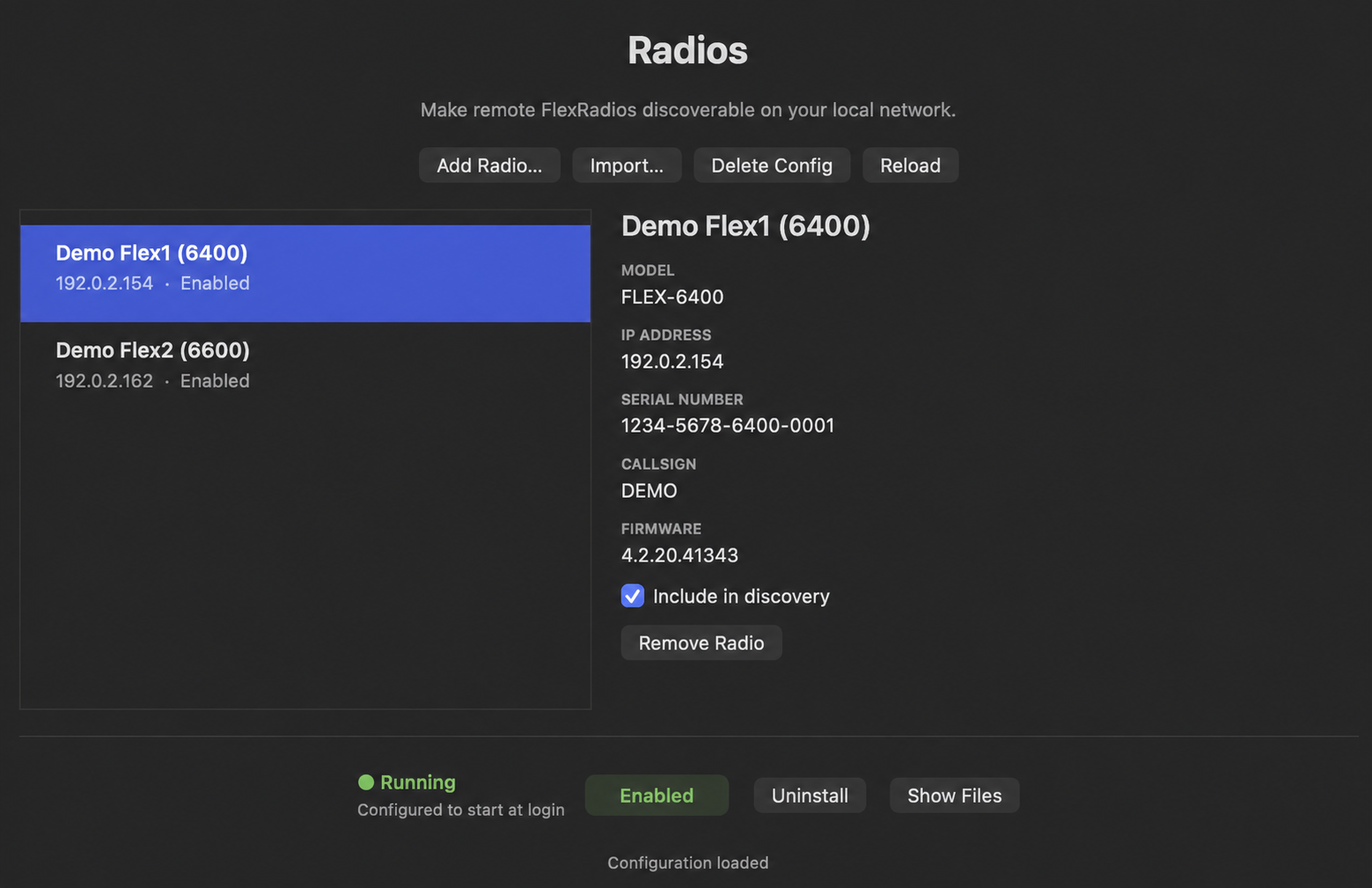
SmartUnlinkPro makes remote FlexRadios discoverable over a routed VPN. It checks each configured radio and advertises it on your local network only while it is reachable. Install it on the computer that connects to your VPN; the enabled service keeps running after you close its window.
Free to download and use. No purchase or license activation is required.
macOS: 1.0.1 · Windows and Linux: 1.0.0
Apple silicon · macOS 13 or later. Open the package, follow the installer, then launch SmartUnlinkPro from Applications.
Downloadx64 application runtime, included in the installer. Open the MSI, then launch SmartUnlinkPro from the Start menu.
DownloadGraphical desktop and systemd user session required. Architecture-independent package; tested on x86-64. ARM Linux has not been tested.
DownloadFor Debian, install from the download folder with sudo apt install ./SmartUnlinkPro-1.0.0-Trixie-all.deb. APT installs the required Python, PySide6 and psutil packages.
The Windows installer is not Microsoft Authenticode signed and may display an unverified-publisher warning.
Tested on Apple silicon macOS, a Windows 11 Parallels VM on Apple silicon, and x86-64 Debian Trixie. Club testing used FLEX-6400 and FLEX-6600 radios, SmartSDR, AetherSDR and a Maestro; compatibility with every model or client version is not guaranteed.
Choose Check for Updates… from the app menu. Leave Check for Updates Automatically enabled to be notified when a new version is available. You choose when to install.
If prompted after updating, choose Update Service to refresh the background service. Your radio configuration is retained.
You need a working VPN and each radio’s private IP address. The VPN must permit the radio’s TCP control connection on port 4992 and the UDP traffic used by your SDR client.
Changes save automatically. Closing the window leaves the enabled service running. Click Enabled to stop it and disable automatic startup.
SmartUnlinkPro supplies discovery announcements. It does not create a VPN, configure routes, forward radio traffic or share your computer’s VPN. A Maestro or another computer needs its own working route to the radio. Stop the original SmartUnlink broadcaster if replacing it to avoid duplicate announcements.
If a radio cannot be added, check its private address, VPN routes and firewall. If it appears but cannot connect, check routing from the actual SDR device. For missing local discovery, check Include in discovery, the service status and logs under Show Files. Local announcements use UDP 4992; guest Wi-Fi isolation, separate VLANs and firewalls can prevent reception.
Back up your configuration using Show Files before updating. Use Check for Updates… on macOS, or install a newer package over the existing version. The app’s Uninstall option also deletes the current user’s configuration, backups and logs.
Complete version 1.0.0 instructions — includes configuration locations, network adapters, everyday controls and troubleshooting.
SmartUnlinkPro is a fork of Brian Bruff’s SmartUnlink, retaining compatibility with its configuration files and adding live radio identity checks, background startup and native macOS / Qt interfaces.
MIT license and attribution · Third-party notices
SmartUnlinkPro is not affiliated with or endorsed by FlexRadio Systems or Ubiquiti.